How to Turn a Podcast Episode Into a YouTube Video (Transcript-First)
If you already publish a podcast, you already have the hardest part of a YouTube channel: a stream of finished, well-researched audio. Turning each episode into a YouTube video gets that work in front of a second audience and a second search engine, without re-recording anything.
Most guides stop at "cut a few Shorts." This one treats the episode's transcript as the master plan: chapters, titles, pull-quotes, visuals and Shorts all derive from the same timed text.
Why put a podcast on YouTube
- Discovery. YouTube is a search engine and a recommendation engine. Podcast audio on a podcast app competes in a different, smaller discovery pool.
- Watch time. Long-form episodes can generate substantial watch time, and audiences increasingly watch on TVs; one 2026 summary puts 60% of US YouTube watch time on TV screens.
- A second surface. Repurposing guides such as Content Allies and Swell AI frame each episode as raw material for several distribution-ready assets, not a single upload.
One honest caveat: video adds work. Pick the format that fits your capacity.
Choose your format
Static cover plus waveform (cheapest)
Your cover art with an audio waveform or a simple animated visualizer. Fastest to produce and perfectly acceptable for listeners who treat YouTube as a player.
Audiograms and clips
Short, captioned clips pulled from the episode, aimed at Shorts, Reels and TikTok. Content Allies describes turning the episode into short vertical videos and audiograms as part of a repurposing strategy.
Chaptered visuals: an essay over the audio
The richest version. You assign a visual (B-roll, a graphic, a screenshot) to each segment or sentence so the episode becomes a narrated video. This works best for scripted or narrated shows, such as story podcasts, solo explainers and produced segments. For two people talking on camera, you're better off cutting multicam footage.
Step 1: transcribe the episode first
Before you edit anything, get a timed transcript. Repurposing guides agree on the order: a transcript is your map for chapters, titles and pull-quotes. A repurposing workflow summarized from the sources starts with "creating a transcript and mining it for assets", then cutting short clips and uploading the full episode with chapters mapped from the timestamped transcript.
You can transcribe with FCP's built-in caption generation (Apple silicon, U.S. English only), a cloud service, or on-device with MatchCut FCP, which uses whisper.cpp so your audio isn't uploaded. Export it as an SRT (format described by the Library of Congress).
Read the transcript once and mark: the 3 to 6 main segments, the best 3 to 5 quotable moments, and anything to cut.
Step 2: build chapters from timestamps
YouTube chapters come straight from your transcript timestamps. Per YouTube's help, add a list of timestamps and titles to the description; the first timestamp must be 00:00, there must be at least three timestamps in ascending order, and the minimum chapter length is 10 seconds.
00:00 Intro
02:41 The spreadsheet error
11:08 Why nobody noticed
24:30 What changed afterward
Chapters improve navigation and make the episode scannable in search results.
Step 3: plan visuals per segment
For the narrated or produced portions, plan one visual per segment (or per sentence if you want a denser cut). A table works:
| Chapter | Timestamp | Visual idea | File |
|---|---|---|---|
| Intro | 00:00 | Cover art + title card | 001_intro.png |
| The spreadsheet error | 02:41 | Screenshot, highlighted cell | 002_spreadsheet.png |
| Why nobody noticed | 11:08 | Archive footage, council chamber | 003_archive.mp4 |
Name files with zero-padded numbers in order, so the folder is the shot list.
Step 4: assemble the video cut
In Final Cut Pro, by hand
Drop the episode audio on the primary storyline, add markers at chapter boundaries, and connect visuals above. For a handful of segments that's quick.
Ordered folder to FCPXML, for narrated portions
If your visuals are dense (a new image every sentence or two), place them with MatchCut FCP: generate the SRT from the episode audio (one block per sentence), load your numbered folder, export FCPXML, and import with File → Import → XML. Each visual lands at its sentence and holds until the next one. The help guide walks through it.
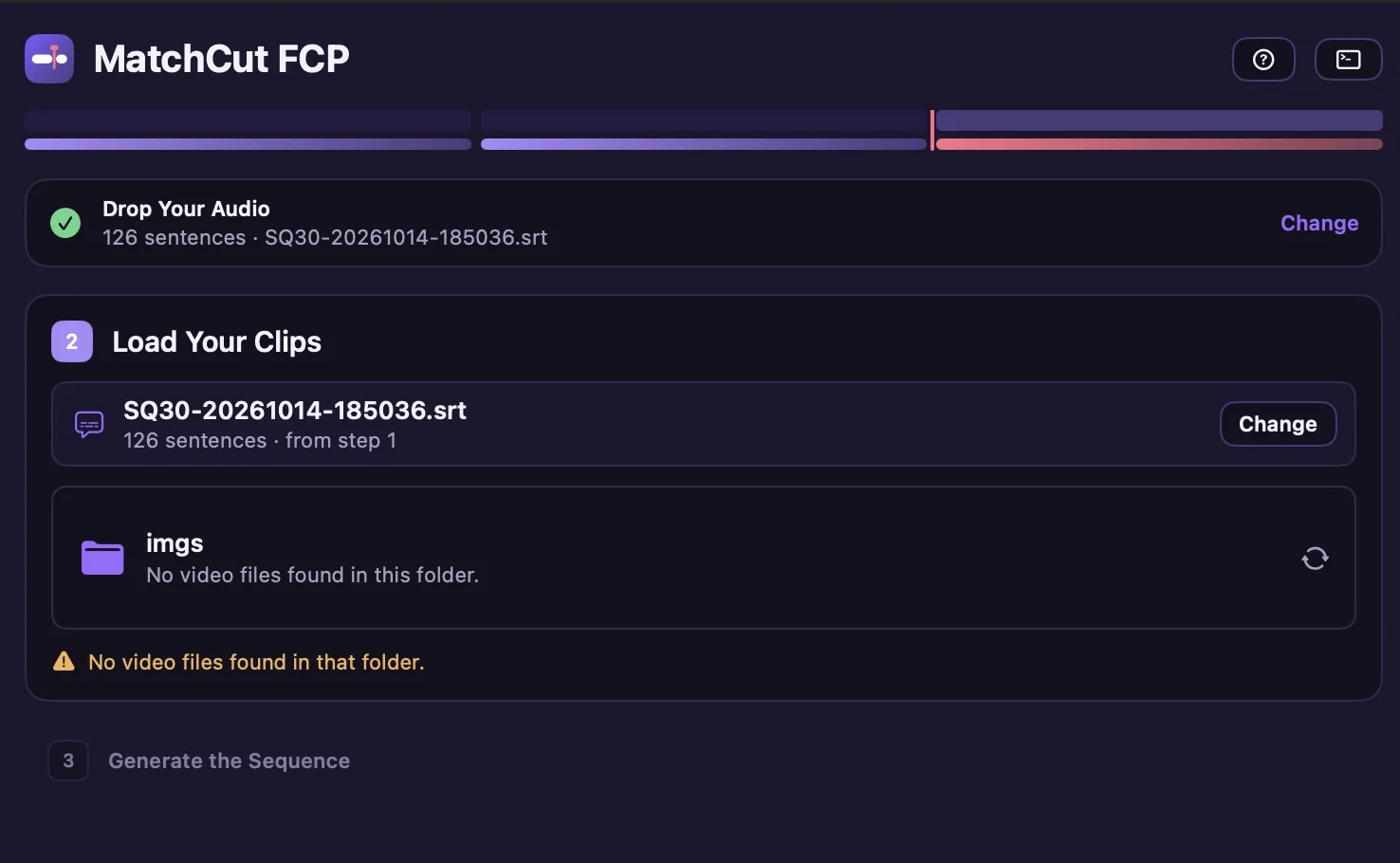
Be clear about where it fits: it aligns your numbered media to a sentence-by-sentence narration. It doesn't cut interview video, switch camera angles or find clips by text, so for two-camera conversation you'll still edit manually or with a transcript-based tool like Descript or Cutsio. It needs Final Cut Pro 10.5+ and an Apple Silicon Mac.
Then finish: levels, noise reduction, music bed, and an intro and outro.
Step 5: cut 3 to 5 Shorts and send them home
Pull the quotable moments you marked, trim each to a tight, self-contained clip, add captions (you already have the SRT) and a hook in the first seconds. Publish three to five as Shorts, with each pointing viewers to the full episode (a pinned comment and an on-screen end card). Repurposing guides summarize this as uploading the best 3 to 5 clips separately to drive subscribers back to the full episode.
Step 6: package
- Title: a specific promise, not just the episode number.
- Description: a two-sentence summary, chapters, guest links and a link to the podcast feed.
- Thumbnail: one subject, a few words, high contrast. Don't reuse the podcast cover untouched.
- Playlist: group episodes into a series.
- Cross-links: link YouTube to your podcast apps and vice versa.
- Captions: upload your SRT instead of relying on auto-captions, especially for technical vocabulary.
Rights and disclosure
- Music and clips. Confirm licenses for your intro music, stingers and any guest or archival footage.
- Guests. Get permission to publish their video likeness if you're adding visuals or using their recorded video.
- AI-generated segments. YouTube requires you to disclose realistic AI-generated or altered content, for example a realistic scene that didn't occur or a real person made to say something they didn't. A simple waveform or your own B-roll doesn't trigger that.
FAQ
Does putting video up hurt my podcast RSS feed? No. YouTube is a separate upload; your RSS feed continues as normal.
Should the YouTube audio match the podcast exactly? Usually yes, plus any edits that make sense for video (for instance, removing "as you can hear" asides).
How long should the video be? As long as the episode. Chapters help viewers navigate long uploads.
Can I do this for a faceless or narrated show? Yes, that's the best case for visuals-over-audio. See How to Start a Faceless YouTube Channel and How to Make a Voiceover-Driven Video.
How do I do this every week? Batch it. See How to Batch-Produce YouTube Videos.
Try the transcript-first workflow
Download MatchCut FCP (subtitles are always free, and so are your first two exports), take the tour, or get early access for $19. For the full craft, see our video essay workflow.
Sources
Accessed 2026-10-16.
- Content Allies — How to repurpose podcast content · Swell AI — Repurpose podcast content · Jamar Diggs — Repurposing between YouTube and podcasts
- YouTube Help — Add chapters · Disclosing altered or synthetic content
- Digital Applied — YouTube Statistics 2026
- Library of Congress — SRT format · ggml-org — whisper.cpp